State, in short: Vector, PEAK and Kvaser channels are kit shipped: their code has run only against test libraries written from the vendors' headers, never against the real libraries or hardware. The python-can path is verified on python-can 4.6.1's virtual and udp_multicast interfaces. The virtual bus is the module's own and verified across processes. slcan is modelled (a pseudo-terminal and a responder of the module's own). The bus monitor is verified on the virtual bus and python-can. No physical bus has been used.
Connect a CAN channel
Run Connect CAN Channel (Ctrl+Alt+J, or the title bar). Interfaces are listed in this order, each group as soon as it is read, with what is missing and where to get it for a library that is not installed:
| Backend | How it is driven | Notes |
|---|---|---|
| Vector interfaces and Vector's Virtual CAN Bus channels | Your Vector XL Driver Library (vxlapi64.dll, vxlapi.dll), in a helper process | Opened by the driver configuration's access mask, so nothing is set up in Vector Hardware Config. Without init access (CANoe holds it) the channel listens and sends at the other application's settings and says so |
| PEAK interfaces | Your PCAN-Basic (PCANBasic.dll, libpcanbasic.so), in a helper process | |
| Kvaser interfaces and Kvaser virtual channels | Your CANlib (canlib32.dll, libcanlib.so), in a helper process | Named by the EAN, serial number and channel on the label (733-0130-00752-9/10005/1, or Virtual/1/1), so a replugged device keeps its name |
| IXXAT, SocketCAN, gs_usb and others | Your python-can 4.0 or later, in a separate process | The picker says why an interface cannot be used |
| slcan adapters (Lawicel, CANable firmware, CAN FD on CANable 2.0) | Directly over the serial port | No Python needed |
| Virtual bus | The Editor's own bus host | Named channels every window can join, classic and CAN FD; for software-in-the-loop work and CI |
Then choose:
- The bit rate: presets, CAN FD arbitration and data rates where the channel runs it, and sample points or explicit segments for Vector, PEAK and Kvaser.
- Listen only, where the driver supports it.
- The databases to decode with, or let them be chosen automatically from the first second of traffic.
Recent setups are remembered per workspace. The status bar shows each channel's state and load. Select CAN Databases for Channel changes the databases; Disconnect CAN Channel closes it. Error passive and bus-off, with the error counters, become channel states; hardware timestamps are mapped onto the channel's clock.
Cyclic sends are jobs in the bus host, on its own thread with a precise clock, as SocketCAN's broadcast manager does them: period, start delay, count, repetitions, payload updates on the next send, rolling counters, and a fixed grid that skips and counts missed slots instead of bursting. A hidden or busy window does not change cycle times. A helper process that crashes is reported on its channels, restarted with its channels and their settings, and given up after three crashes in a minute.
Error frames on the bus
A frame you send can be an error frame, from Interactive Transmit or as a fault of the rest-bus simulation (see Rest-bus simulation). Each backend sends one only where its own interface establishes it, and otherwise says why before anything is called:
| Backend | Error frames |
|---|---|
| Vector, classic CAN | Sent through the driver's error frame flag. On a channel opened for CAN FD, the Editor asks you to open it for classic CAN |
| Kvaser | Sent on a channel whose capabilities include generating error frames; refused with the reason on others |
| PEAK | Not offered: PCAN-Basic reports error frames it receives but has no way to send one |
| python-can | Its udp_multicast interface only; SocketCAN and the other interfaces say why not |
| slcan | Not offered: the protocol has no command for one |
| Virtual bus | Every other channel on the bus receives it |
State: run on the virtual bus and python-can's udp_multicast; Vector and Kvaser kit shipped. No hardware has received an error frame from the Editor.
Watch the bus
The CAN Bus panel has five views:
- Trace: chronological, or fixed per identifier with the latest data, count, cycle time and changed bytes (Show Fixed CAN Trace (One Row per Identifier), Show Chronological CAN Trace). Decoded signals per frame; error frames and bus states; ISO-TP frames named and their messages reassembled live, with the UDS service of an ECU definition's messages (see Trace files); J1939 PGN, source, destination and priority columns; E2E and SecOC results. Pause CAN Trace Display, Resume CAN Trace Display, Clear CAN Trace, Collapse All CAN Trace Rows, and filters in one language over frame fields and signal values.
- Graphics: live signals in the signal plot, following the newest data (Add Signal to CAN Graphics, Remove All Signals from CAN Graphics, Clear CAN Graphics). It keeps the last
neuralInverse.automotive.busMonitor.graphicsRetentionSeconds(default 600). - Data: the equivalent of CANoe's Data window. The current physical value of each chosen signal with its unit or value name, raw value, time and message, from any open channel or the rest-bus simulation, in named groups (Add Signals to Data Window, Add Data Window Group..., Rename Data Window Group...). Rows are moved by drag and drop, Alt+Up and Alt+Down or the row buttons, and removed with Delete. The layout is kept per workspace; values refresh ten times a second while the view is visible.
- State Tracker: value names as bands and booleans as edges, one row per signal (Add Signals to State Tracker), kept for the same time as Graphics.
- Statistics: bus load from the exact bit length of every frame (stuff bits and CRC, CAN FD phases at their rates), now, peak and average; frames per second; error frames; per-identifier cycle times against the database's.
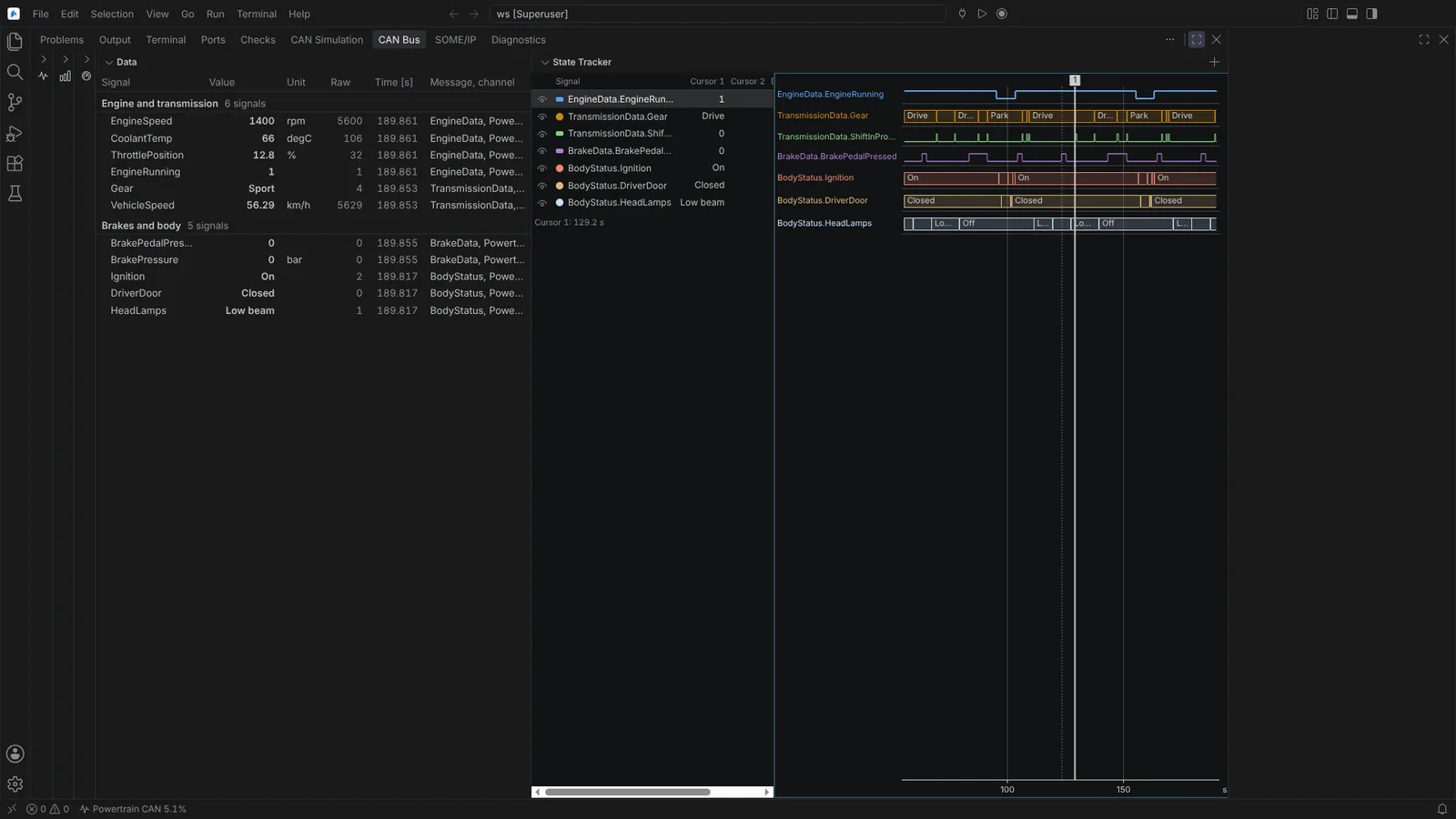 The Data view with physical values in named groups beside the State Tracker showing value names as bands and booleans as edges.
The signal plot is the same everywhere (Graphics, State Tracker, the trace editor and the measurement window): stacked or overlaid lanes, steps with sample markers when zoomed in, state signals as labelled bands, booleans as digital lanes, auto, manual or shared scales, zoom, pan, box zoom and fit with mouse and keyboard, follow mode, and two cursors with delta time and per-signal values and deltas. It is operated by keyboard and announced to screen readers.
Send CAN Frame sends a raw frame, or a database message with its signals set.
Record
- Start CAN Recording writes Vector ASC, PEAK TRC 2.1, candump, BLF or MF4 to the file you choose, or to
neuralInverse.automotive.busMonitor.recordingFoldernamed by date and time. Stop CAN Recording ends it. - Start Triggered CAN Recording... takes start and stop conditions in the filter language, pre- and post-trigger time, a recording filter, repeated triggers, and files split by size or time.
- Save CAN Trace Buffer As... saves what the Trace view holds; a
.trcname writes TRC 2.1.
BLF and MF4 are written through your python-can and asammdf. No vendor tool has opened a recording made here.
State: verified on the virtual bus and python-can over the real bus host. Recordings are modelled for the vendor tools. Single stalls of about 20 ms remain on the non-vendor backends.