Open a project as it is
Open the folder and trust the workspace. The module recognises the project types listed in How the module starts and starts. Nothing is converted and no file of the project is changed by opening it.
| Project | What happens | State |
|---|---|---|
IAR .ewp, with the .eww workspaces that list it | Its configurations are build configurations; it builds in place with iarbuild, and the workspace's .custom_argvars is passed to iarbuild | Modelled on public demo projects; builds kit shipped (iar-keil-build), not yet run against IAR |
Keil .uvprojx | Its targets are build configurations; it builds in place with uVision's batch mode (Windows only) | Modelled; builds kit shipped (iar-keil-build), not yet run against Keil |
STM32CubeIDE .cproject | Its build configurations build in place with STM32CubeIDE's headless builder | Modelled on ST's example projects; kit shipped (stm32cubeide-build), not yet run against STM32CubeIDE |
| CMake with Arm presets, including IAR-only and Arm Compiler 6-only projects | Its configure presets are build configurations; presets for an Arm target and for the host are told apart | Detection unit-tested on CMake snippets; no real IAR-only or Arm Compiler-only CMake project configured |
STM32CubeMX .ioc | Opens in the Pinout editor (read-only); pins can be imported | Unit-tested |
How the project is built is on Build, size and build records; how it is edited in place for colleagues still in the vendor IDE is on Edit IAR, Keil and STM32CubeIDE projects.
Choose the build configuration
The status bar shows the active configuration: CMake: <preset>, IAR: <configuration>, Keil: <target> or STM32CubeIDE: <configuration>. Click it, or run Select Build Configuration, to choose the configuration to build, flash and index. The list holds CMake presets (marked Arm target or Host), IAR configurations, Keil targets and STM32CubeIDE configurations together, and the choice is remembered per workspace. When a workspace has both CMake presets and vendor projects, CMake is the default.
- Configure Active Preset runs CMake's configure step for the active preset. A preset that was never configured is configured by itself when code navigation needs it. IAR, Keil and STM32CubeIDE projects have no configure step.
- If the CMake source folder is not at the top of the workspace, set
neuralInverse.embedded.cmake.sourceDirectoryto the folder withCMakePresets.json. - Every preset should set
CMAKE_EXPORT_COMPILE_COMMANDS=ON, because language support and static analysis readcompile_commands.json.
State: unit- and rendering-tested on fixture projects of a few files. Windows paths on Windows are not verified.
Import a vendor project into CMake
To move a Keil, IAR or STM32CubeIDE project to a GCC CMake project, run Import Keil, IAR or STM32CubeIDE Project... from the Command Palette, or Import into CMake from the vendor project's context menu in the Explorer.
The import writes the CMake files, a toolchain file and, when needed, a GNU linker script into the project (memory from an IAR .icf file is read for it). Items that need a look, such as Arm assembler files that cannot be converted, are listed at the end of CMakeLists.txt and in the Embedded log. Then select a preset and build it.
State: tested on fixture projects of a few files. Not verified on any real Keil, IAR or STM32CubeIDE project; its integration test needs CMake and the Arm GNU Toolchain.
Start a new project from a device
New Firmware Project from Device... creates a project for any device of an installed CMSIS device pack:
- Choose the device, such as STM32F407VG. If no pack is installed, Select Device installs the pack of the device you choose.
- Give a project name (it also names the folder and the firmware image) and the folder to create it in.
- Open the new folder, here or in a new window.
The project has CMake presets for debug and release, the linker script from the device's memory map, a startup file with its vector table, host unit tests, and the device's SVD file. It builds with CMake and the Arm GNU Toolchain.
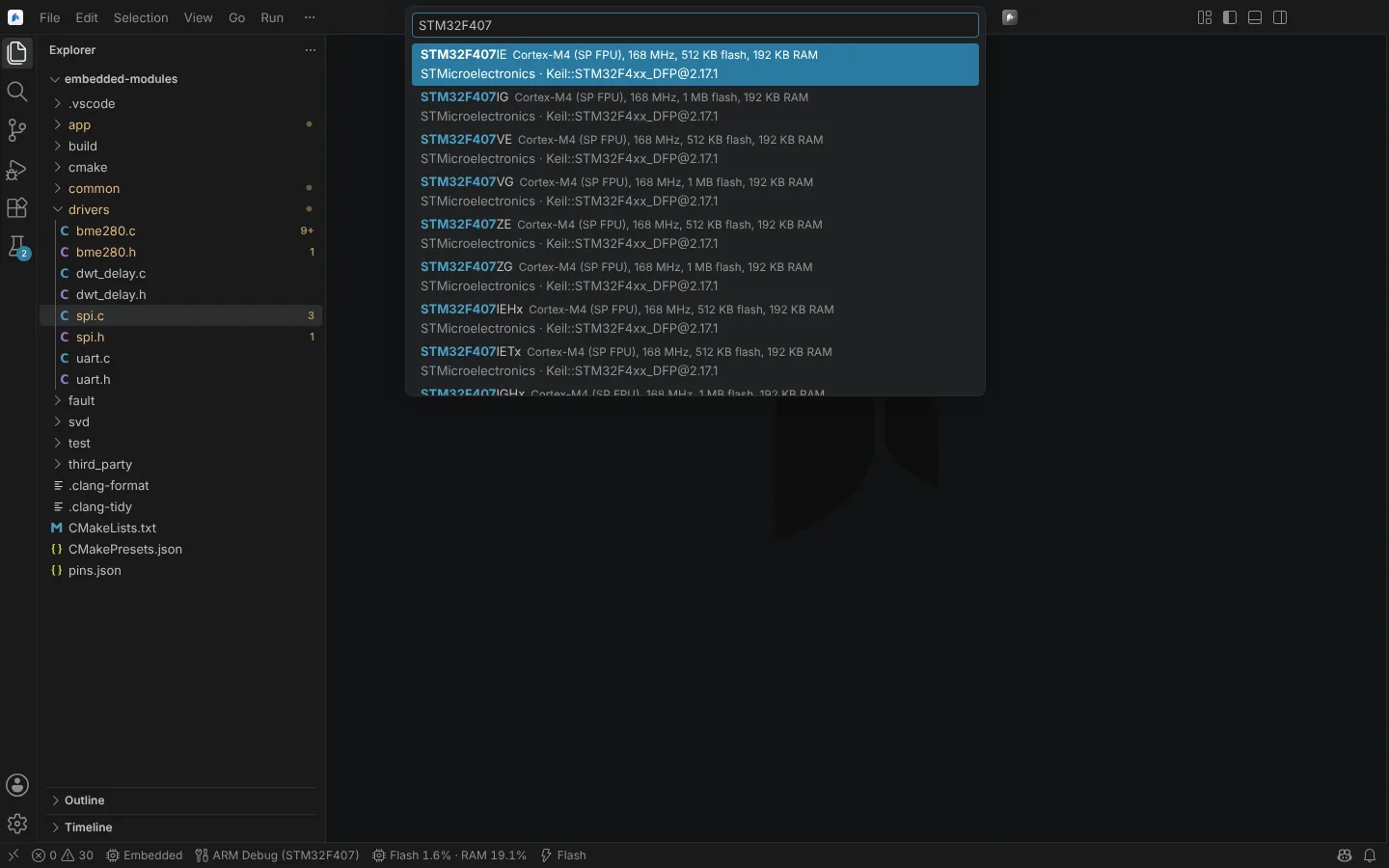 Choosing an STM32F407 device from an installed CMSIS device family pack for a new project.
State: unit-tested on the generated files. A build of the generated project is not yet verified.
Files the module writes into your project
Files the module writes into a project on request (new projects, imports, generated pin headers, startup files, linker scripts, CMake files) start with your organisation's header from neuralInverse.embedded.standards.requiredHeader, or, when none is set, a line saying they were generated by the Editor and are yours to use, modify and distribute without restriction. The Editor's licence does not apply to them.
The Get Started walkthrough
The Welcome page has Get Started with Firmware. It never opens by itself. Its steps:
- Check the Toolchain: the compiler, the build tools (CMake, or the IAR or Keil builder) and the probe software.
- Create or Import a Project: import your IAR, Keil or STM32CubeIDE project, or start one for a device.
- Select the Device, so registers, memory and pins match your hardware.
- Build the active configuration.
- Connect the Debug Probe.
- Flash the Board, after confirmation.
- Debug on the Target.
- Open the Serial Monitor.
A step is checked off only when its build, flash or connection really succeeded, never when you merely open it. State: rendering test only; the walkthrough has not been completed with real tools and a probe.