How it starts
There is no switch. The environment runs by itself in a trusted workspace that holds automotive work, searched three folder levels deep (build output, dependencies and hidden folders are skipped):
- DBC, LDF, ARXML, A2L, CDD, ODX or PDX files;
- bus traces:
.asc,.blf,.mf4, PEAK.trc,.candumpand candump.log; - Ethernet captures:
.pcap,.pcapng; - a CANoe project:
venvironment.yaml,.vsysvar, CAPL.canand.cin, CANoe.cfg.
Extensions other formats share are confirmed by their first bytes: an .asc must start like a Vector ASC trace, an .ldf must declare LIN_description_file;, a .trc must start like a PEAK TRC trace, a .log like a candump log, captures must carry the pcap or pcapng signature. ReqIF files alone do not start it. The environment looks again when folders change or such a file appears, and stops when the last automotive file is deleted.
In Restricted Mode nothing automotive runs and the workspace is not searched, because the module opens CAN interfaces and runs your Python and seed-key commands. Revoking trust stops every feature. A workspace without automotive work is unchanged, apart from the colouring of DBC, LDF and CAPL files.
The former setting neuralInverse.automotive.enabled is no longer used and is removed from settings files automatically.
Entry points
| Where | What |
|---|---|
| Title bar, next to search | Connect CAN Channel (Ctrl+Alt+J), Start Rest-Bus Simulation (Ctrl+Alt+H) or Stop, Start CAN Recording or Stop |
| Empty editor area | Connect CAN Channel and Start Rest-Bus Simulation with their keys |
| Panels | CAN Bus, CAN Simulation, Diagnostics, LIN Bus, SOME/IP |
| Explorer | CANoe Project and BSW Project views, when the workspace holds such a project |
| Testing view | CANoe Test Units, Diagnostic Tests, Test designs and Requirements Coverage |
| Editors | CAN Database, CAN Trace, Ethernet Trace, DLT Log, FlexRay Cluster, FlexRay Trace, measurement file, Panel, Test Design, BSW Configuration, Software Components and Adaptive Manifest |
| Welcome page | Walkthrough Get Started with Automotive Networks: open a DBC, check it in the CAN Database view, connect a channel, simulate the rest of the bus, watch the bus, diagnose an ECU. Each step completes on what happened, never on its button |
| Command Palette | All commands under Neural Inverse Automotive |
| Output, channel Automotive | The module's log |
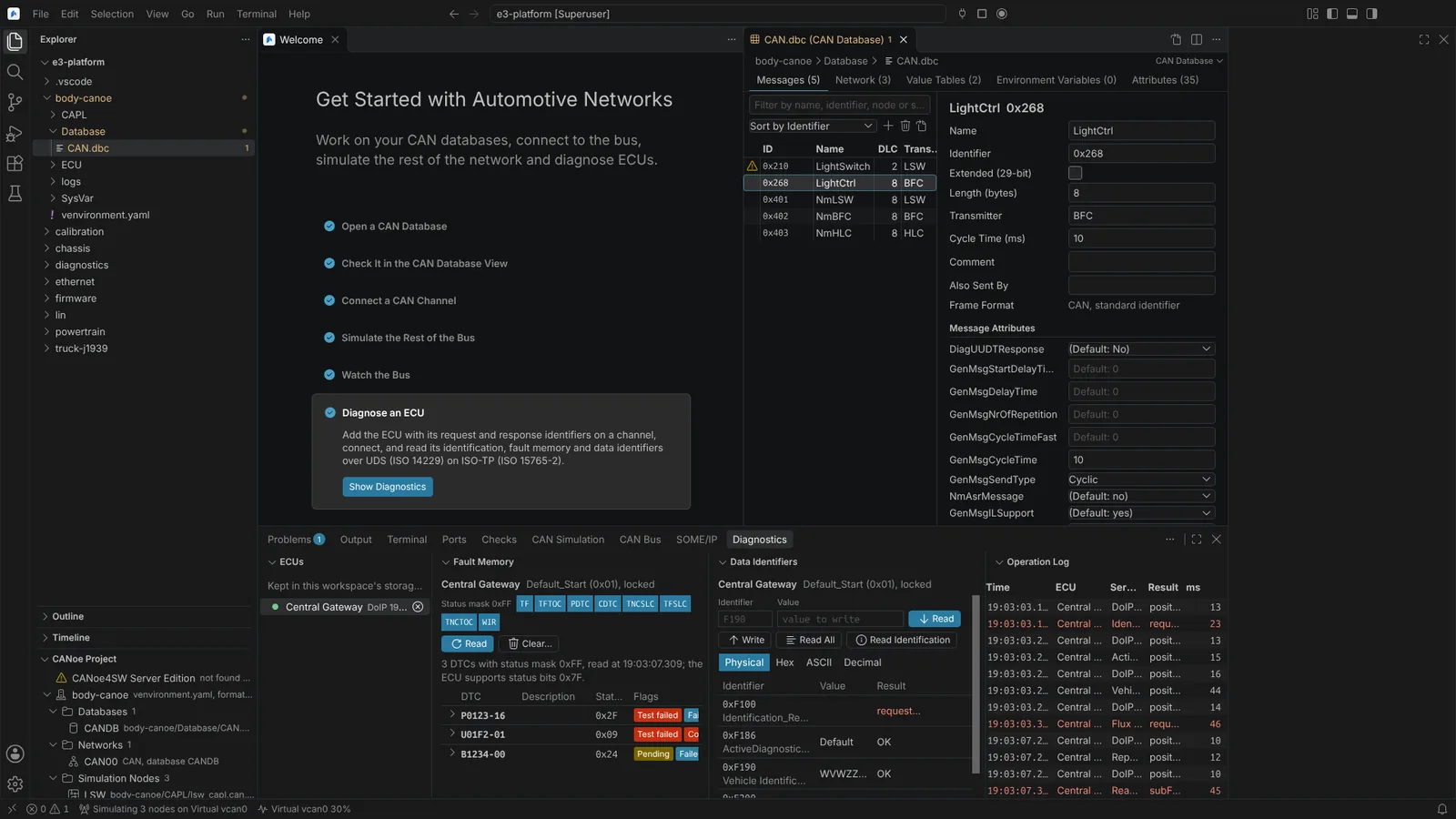 The Get Started with Automotive Networks walkthrough beside the CAN Database view, with the Diagnostics panel below.
Traces open in the CAN Trace editor and captures in the Ethernet Trace editor by default. DBC files open as text, with the CAN Database view one click away.
Requirements
| What | Needed for | Notes |
|---|---|---|
| A trusted workspace with automotive files | Everything | A folder with only a .dbc is enough to start |
| Vector XL Driver Library and the Vector driver setup (Windows) | Vector CAN and LIN interfaces, and Vector's Virtual CAN Bus channels | From Vector's Download Center |
| PEAK device driver with PCAN-Basic (Windows), or PEAK's Linux driver package | PEAK CAN interfaces | PEAK's licence allows PCAN-Basic with PEAK or OEM hardware only |
| PEAK PLIN-API (Windows) | PEAK LIN interfaces | |
| Kvaser Drivers for Windows (CANlib and the virtual CAN driver), or linuxcan | Kvaser CAN interfaces and Kvaser virtual channels | |
| Kvaser LINlib | Kvaser LIN interfaces | |
| Python 3 with python-can 4.0 or later | IXXAT, SocketCAN, gs_usb and other python-can interfaces; reading and writing BLF | Not needed for Vector, PEAK, Kvaser, slcan or the virtual bus |
| asammdf in the same Python | Reading and writing MF4 bus logs | Measurement MF4 files are read and written without Python |
Wireshark's dumpcap | Live Ethernet capture | On Windows, Wireshark's installer installs Npcap |
| CANoe4SW Server Edition (or CANoe 17 or later) | Building environments and running CANoe test units | Your licence |
| An MVCI D-PDU API and VCI | Diagnostics through a VCI | |
| Your AUTOSAR XML schemas | ARXML schema validation | Not shipped; use the copy from your AUTOSAR release or tool |
DaVinci Configurator Classic's dvcfg-b | Validating DaVinci projects and generating BSW and RTE |
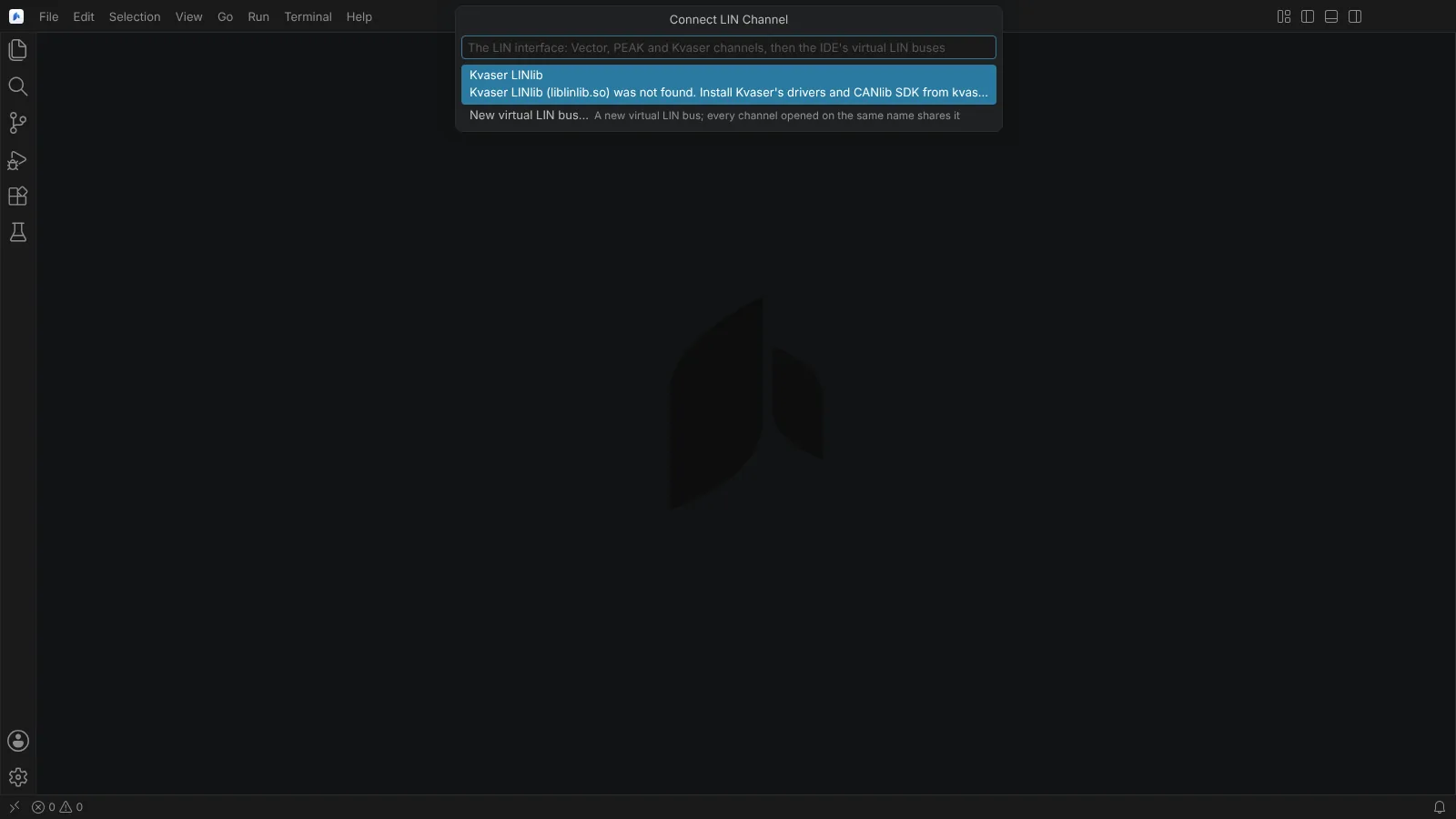 The Connect LIN Channel picker reporting that a vendor library is not installed and offering a new virtual LIN bus.
No administrator rights are needed by the module itself; this has not been checked on a managed machine.
Settings
Library and interpreter paths are machine scoped and restricted in untrusted workspaces. Leave a path empty to find the installed library.
| Setting | Points at |
|---|---|
neuralInverse.automotive.vectorLibraryPath | vxlapi64.dll, or its folder. Empty looks in the XL Driver Library folders under %PUBLIC%\Documents\Vector, the install locations Windows records, the system folder, then PATH |
neuralInverse.automotive.pcanLibraryPath | PCANBasic.dll or libpcanbasic.so, or its folder |
neuralInverse.automotive.kvaserLibraryPath | canlib32.dll or libcanlib.so, or its folder |
neuralInverse.automotive.plinLibraryPath | PLinApi.dll (Windows only), or its folder |
neuralInverse.automotive.kvaserLinLibraryPath | linlib.dll or liblinlib.so, or its folder |
neuralInverse.automotive.pythonPath | The Python interpreter with python-can. Empty uses python3, then python, from the login shell's PATH |
neuralInverse.automotive.dpduRootFile | The MVCI root description file. Empty reads the registry value Root File of HKEY_LOCAL_MACHINE\SOFTWARE\D-PDU API on Windows, else C:\Program Files\D-PDU API\pdu_api_root_x64.xml; on Linux /etc/pdu_api_root.xml |
neuralInverse.automotive.arxmlSchemaFolders | Folders holding the AUTOSAR XML schemas (AUTOSAR_00049.xsd, AUTOSAR_4-2-2.xsd, ... with xml.xsd) |
neuralInverse.automotive.dumpcapPath | Wireshark's dumpcap. Empty looks on PATH, then in Wireshark's install folders |
neuralInverse.automotive.canoeToolsPath | The folder of CANoe4SW Server Edition's tools (canoe4sw-se, environment-make, test-unit-make). Empty looks on PATH, then %CANoe4SWSE_InstallDir64% on Windows or /opt/vector/canoe-server-edition on Linux |
neuralInverse.automotive.reportViewerCliPath | Vector's ReportViewerCli, for the reason a CANoe test case failed |
neuralInverse.automotive.canoeArchitecture | The architecture environment-make builds for (its -A option) |
neuralInverse.automotive.davinciCliPath | DaVinci Configurator Classic's dvcfg-b (or dvcfg), or its folder |
neuralInverse.automotive.bswPackagePath | The BSW package (MICROSAR SIP) folder for dvcfg-b -b |
Bus monitor, LIN, Ethernet, SOME/IP and DLT settings are listed in Reference.
Verify your CAN interface
Run this once on each machine and interface family. It takes about 10 seconds.
- Open a folder with any
.dbcand trust it. - Set the library path if the library is not where its installer puts it.
- Run Verify CAN Interface and pick Vector XL Driver Library, PEAK PCAN-Basic or Kvaser CANlib. A missing library is reported with the download to install or the setting to set.
- Pick two channels on the same bus. For Vector and Kvaser, the driver's virtual channels are preselected, so no hardware is needed. For PEAK, or a hardware check, use two channels joined by a terminated cable with nothing else on it.
- Pick the bit rates, confirm for hardware channels that only those two channels are on the cable, and choose where to save the report.
The kit transmits about 2,500 test frames, a cyclic frame and error frames: never run it on a vehicle network or with an ECU connected. Verify LIN Interface does the same for LIN, on two LIN channels joined by a powered cable (the vendors' virtual channels carry no LIN). Send the report to your Neural Inverse contact: it is what moves an interface from kit shipped to verified.
Kits for the OEM seed-key library, CANoe4SW Server Edition, test variants and traceability, compiled test designs, DaVinci Configurator and a VCI's D-PDU API are also available from your Neural Inverse contact.
Smoke test without hardware
| Step | Expected |
|---|---|
Open a .dbc, then Open CAN Database View (editor title button) | Messages, signals and nodes in the view; the file's problems in Problems |
| Connect CAN Channel, pick the virtual bus | A connected channel in the CAN Bus panel |
| Start Rest-Bus Simulation on that channel | Decoded frames in the CAN Bus panel's Trace; values in the CAN Simulation panel |
| Change a signal's value in the CAN Simulation panel | The new value in the Trace within one cycle |
| Start CAN Recording, wait 10 s, stop | A trace file in the format you chose |
| Open the recording (Open as CAN Trace) | The CAN Trace editor with the frames decoded, and the signal plot |